Use the Household Data Sharing function to save data entry time for households of 2 or more.
First, create an Entry/Exit in the Clients Module or add a Unit Stay in the Shelters Module. Then use the Clients Module or Shelters Module instructions to enter data for multiple household members at once.
TABLE OF CONTENTS
Clients Module Instructions
From the entry assessment, start your data entry by clicking on the Add Household Data button

It will default to only have one client selected. Make sure to select all of the household members included on the entry.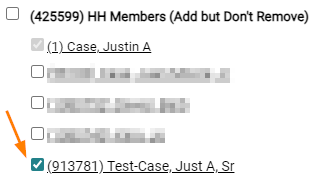
Then fill out all of the questions that apply to all selected household members and Save & Exit at the bottom.

This will answer these questions for all household members. The bar next to these questions will be bright green on your entry because the data was just updated.

Shelters Module Instructions
From the Unit Entry Data in the Shelters Module, start your data entry by selecting all the household members on this entry in the Household Members section
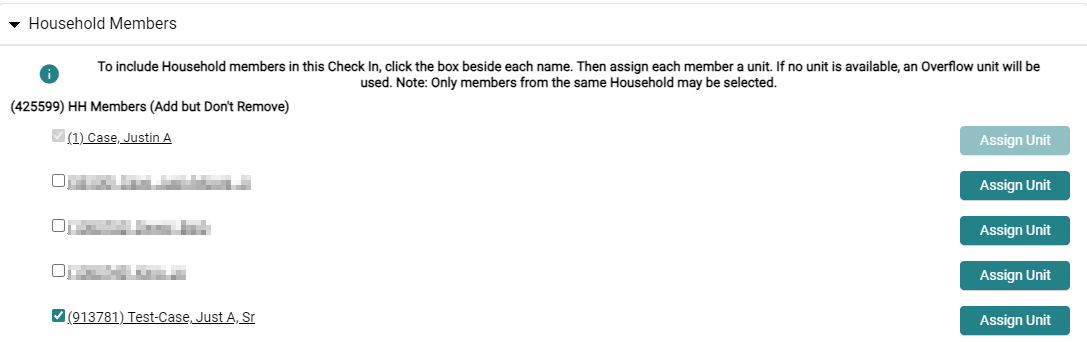
Then scroll up to the Household Sharing section just above this and click on the Add Household Data button.

It will default to only have one client selected. Make sure to select all of the household members included on the entry.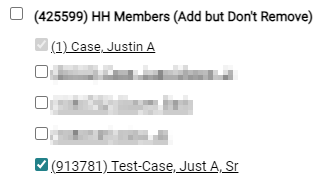
Then fill out all of the questions that apply to all selected household members and Save & Exit at the bottom.

This will answer these questions for all household members. The bar next to these questions will be bright green on your entry because the data was just updated.

Was this article helpful?
That’s Great!
Thank you for your feedback
Sorry! We couldn't be helpful
Thank you for your feedback
Feedback sent
We appreciate your effort and will try to fix the article