**This used to be the DQ Abbreviations Article - you won't need the abbreviations with these new reports :)
TABLE OF CONTENTS
Overview
The Data Completeness for Entry Assessments reports are used to help HMIS users ensure all required questions on clients' project entry assessments have a response. We have five reports to help you, and you will choose based on the Entry Assessment for your project.
| Data Completeness for | ||||
| LIGHT | BASIC | PLUS | RHY | YHDP |
| Entry Assessments | ||||
These reports have two pages - Report Card and Questions by Client.
Report Card
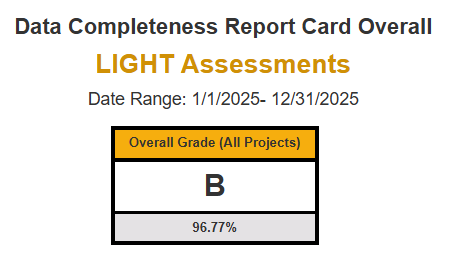
The Report Card has two sections. The very top is the overall information for all projects run in the report. This is a cumulative grade for all projects.
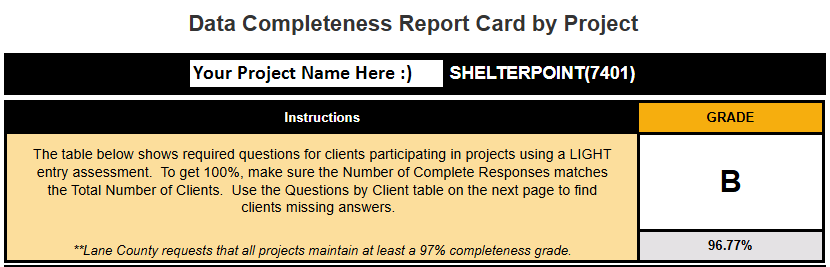
Below this, each project you select will have its own section. Each section starts with the project name, instructions, and a completeness grade for the project.
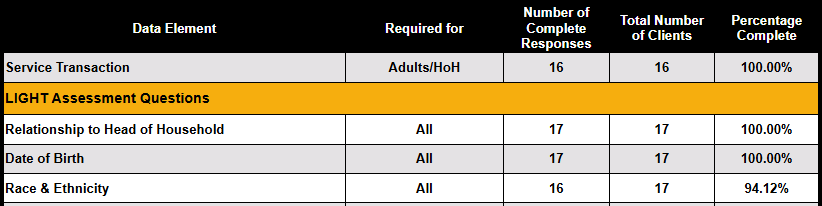
Then, below this, there is a list of all questions required in the project entry. You will see all questions, as well as who is required to answer, how many complete responses to the question out of the total number of clients required to answer. The grade is a simple calculation of how many answers are there divided by how many answers there should be.
NOTE: While the Service Transaction row in the table receives a percentage complete, this percentage is not included in the project grade or overall grade calculation because projects have varying requirements for service transactions.
Questions by Client
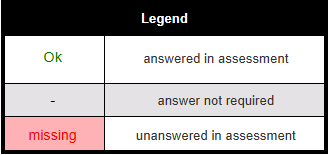
The Questions by Client page is where you can check to see which clients have questions that are missing a response. First, there is a legend:
Next, there is a section of the report that tells you some Project Information:
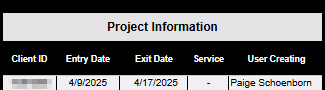
Each row represents one client's project entry into your project. The first section tells you their client ID, project entry date, project exit date (blank if active), if they have a service (using the Legend above, we know this means this client is not required to have a service), and which user created their project entry.
The second section is a list of the required questions in the project entry assessment. Putting all the information together, we know that this client is enrolled in our project and is missing a few questions. The goal is that you use this report to find missing values instead of going through each client's entry assessment and manually checking.
**Agency Admins - it can be helpful to look over this report for all staff and see if there is a pattern of data being missed or perhaps a certain user missing something.

The questions show up in the order they show up in the project entry assessment. Using the legend above, we know that an Ok means the question has an answer, the dash (-) means the answer isn't required for this client, and the missing means the question is required and is missing an answer.
**Note: If services are missing they show up as missing in regular text. Again, this is because requirements for services are so varied - please check with your project requirements to see if you must record a service transaction for all clients in the project.
Frequently Asked Questions
Where are these reports? You can find these reports in BusinessObjects in the Data Quality folder.
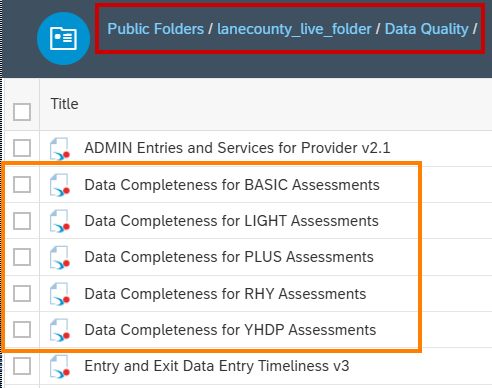
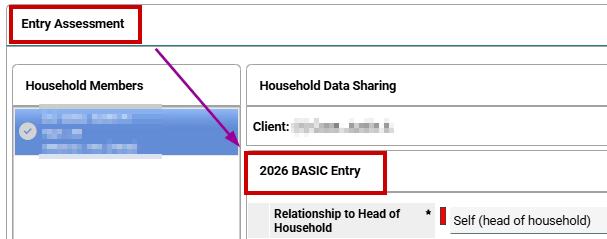
How do I know which report to run for my project? Navigate to an active client's project entry. Open their entry assessment and navigate to the first question, "Relationship to Head of Household." The text above that question tells you which assessment the project is using / which questions clients are required to answer.
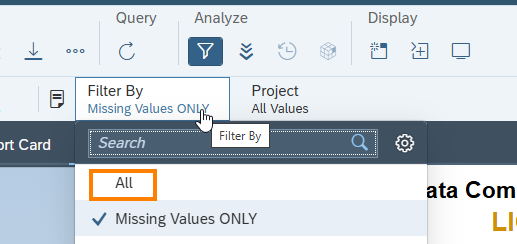
How come no one is showing up on my Questions by Client page? This report is set to automatically show ONLY clients MISSING assessment values. So, if no one shows up, likely you have no clients with missing assessment questions! To double check, use the Input Control at the top of the report to see a list of clients with complete assessments.
Still have questions about how to read this report? Please reach out to one of the staff at Lane County's HMIS team: HSDHelpdesk@lanecountyor.gov.
Was this article helpful?
That’s Great!
Thank you for your feedback
Sorry! We couldn't be helpful
Thank you for your feedback
Feedback sent
We appreciate your effort and will try to fix the article